ImgLook is an easy to use tool, to organize your images, to convert image formats and shrink photos to smaller size.
ImgLook Tutorial: Convert HEIC to JPG/PNG & Master Image Management






In today's digital world, we're surrounded by image viewing and editing tools. Your operating system comes with built-in apps, and there are countless free and paid alternatives online. So why should you choose ImgLook?
Privacy and Security First: Unlike many cloud-based tools that upload your personal photos to remote servers, ImgLook processes all your images locally on your computer. Your family photos, personal documents, and sensitive images never leave your device. This is crucial for anyone concerned about data privacy or working with confidential images.
Professional Precision: While built-in apps offer basic functionality, ImgLook provides professional-grade tools for precise printing, batch processing, and advanced editing—all in one package.
Efficiency at Scale: Need to resize 100 vacation photos? Convert an entire folder of images to a different format? Add watermarks to dozens of product images? ImgLook handles these tasks efficiently with intuitive batch processing.
Cross-Platform Consistency: Whether you use macOS or Windows, ImgLook provides the same powerful interface and feature set, so you don't need to learn different tools on different devices.
When you first run ImgLook, you'll see a welcome screen with several options:
Take UI Tour: Recommended for new users to familiarize yourself with the interface
Skip and Start: Jump right into using the app
Don't show this welcome screen again: Toggle this if you don't want to see the welcome screen on future launches
Check for updates: Enable automatic update checking
ImgLook Welcome Screen
By default, ImgLook scans your "Pictures" folder. To add more folders:
Tip: You can add multiple folders for comprehensive image management.
ImgLook integrates with your operating system for seamless workflow (see System Integration):
macOS: Adds "View by ImgLook," "Edit by ImgLook," and "Print by ImgLook" to Finder context menus for supported image files.
Windows: Adds the same options to Windows Explorer context menus.
Enable/disable these integrations in Settings → System Integration.
The primary interface with Navigation Panel (left sidebar), Mainview Panel (center area), and Main Menu (top right). Contains Gallery, Favorites, Local Computer, Tags, By Dates, and Search sections.
ImgLook Main Window
ImgLook's main window interface consists of three main areas:
Navigation Panel (Left Sidebar): Your control center for accessing different views
Main Window Sidebar
Gallery
The Gallery lists all photos in folders manually added. There are two options to add gallery folder.
 .
.The photos under user's Pictures folder will not appear in the Gallery.
Favorites
Listing photos marked as "Favorites" by "Add to Favorites" from the context menu.
Local Computer
ImgLook loads "Pictures" folder initially, and all folders added for gallery are listed here.
Tags
Tagging photos with different tags, make it easy to category images.
By Dates
List photos by Year, Month, and Day. The highlighted "Days" have photos, the greyed ones don't.
ImgLook List Photos By Dates
Search
Filter and search photos by:
Date Range.
Filter photos between the selected start date and end date.
Dimensions
Find images machting to given width and height exactly. Or in range of given dimensions
Extension
Find all photos with given file extension, for example: .jpg etc.
Geo Location
Filter photos within the selected Geo Boundaries on map.
Mainview Panel (Center Area): Where your images are displayed
ImgLook Main View
Topbar: Status and Tools
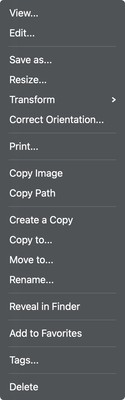
Thumbnail View
View: Launch Viewer to view images
Edit: Launch Editor to edit image
Save as: Save the image to different file
Resize: Quick change the size of the image
Transform:
Correct Orientation: Fix the wrong exif orientation.
Print: Launch Print window to print the image.
Copy Image: Copy the image data to clipboard
Copy Path: Copy the file path of the image file.
Create a Copy: Clone the file in current folder
Copy To: Copy the file or files to another folder
Move To: Move the file or files to another folder
Rename: Change the file name.
Reveal in Finder: Open Finder and locate the image file.
Reveal in Windows Explorer: Open Windows Explorer and locate the image file
Add to Favorites: Mark the selected images as favorites
Tags: Manage tags associate with the image file.
Delete: Move the file to Trash / Recycle Bin by default, change options in preferences to delete the file permanently.
Main Menu (Top Right): Application settings and Quick Search
Full-screen image display with navigation controls, zoom tools, and image information sidebar.
ImgLook Image Viewer
Comprehensive editing workspace with drawing tools, adjustment tools, effects, and tool-specific property panels.
ImgLook Image Editor
New: Create blank image, or from image data in clipboard
Open: Open a image file.
Zoom In
Zoom Out
1:1 Show image in actual size
Undo
Redo
Select Mode
Eraser: Erase pixels in image
Draw Straight Line
Free Draw
Draw Ellipse / Circle
Draw Rectangle
Draw Line with Arrow Head
Draw Step Markers
Draw Text
Blur Partial Portion of the Image
Pixelate Portion of the Image
Crop Image
Rotate Left
Rotate Right
Flip
Mirror
Measure: Measure length in pixels on image.
Perspective Rectification: Correct the perspective ratio of the image
OCR: Recognize texts on the image
Effects:
Print Image
Layout-based interface for combining multiple images into artistic arrangements with customizable cells and spacing.
ImgLook Photo Collage Maker
Layouts
Change layouts for the photo collage, support up to 16 photos in one canvas.
Canvas
Settings
Canvas Settings
Aspect Ratio
Margins: Adjust margins on left, right, top and bottom
Spacing: Adjust spaces between cells
Corner Radius: set rounded corner
Background Color: Change background color of the output image, transparent by default for png and webp format, and white for jpg format.
Output Settings
Set maximum value for the bigger of width and height depending on aspect ratio. 0 by default to output image in size of current view port.
Precision printing interface with paper simulation, image positioning controls, and print settings panel.
ImgLook Print Image Precisely
Left Sidebar
Add Image: Add more images to print
Printer List
Paper: Paper that the selected printer supports
Direction: Portrait or Landscape
Margins: Margins for print out
Color Mode: Color or gray
Copies
Print: Print directly, or click the drop down arrow for:
Print Canvas
Adjust image position and size
5-step wizard for batch format conversion with preview, format options, and output configuration.
Batch resizing interface with dimension controls, aspect ratio options, and interpolation settings.
Multi-step interface for adding watermarks and decorative frames to images with preview and positioning controls.
ImgLook Add Watermark and Photo Frame
Creation interface for text or image watermarks with positioning, rotation, opacity, and repeat options.
Create Text Watermark
Design interface for creating decorative frames with border edges, fill options, and shadow effects.
Photo Frame
Configuration panel for shadow effects with blur radius, offset, angle, and color controls.
Add Text Drop Shadow
Operating system context menu integration for macOS Finder and Windows Explorer. Enable individual image file extension to integrate for viewing, editing, and printing from context menu.
macOS
ImgLook Finder Integration
On macOS, to make the integration work, you need to enable "ImgLook" in System Preferences -> General -> Login Items & Extensions:
Windows
To integrate with Windows Explorer, it requires administrative privilege to write registry.
Use Tags Consistently: Develop a tagging system (e.g., "Vacation2023," "Family," "Work") for efficient organization.
Leverage Favorites: Mark frequently accessed images as favorites for quick retrieval.
Batch Process Smartly: When converting or resizing many images, use filename templates to maintain organization.
Save Presets: For frequently used watermark/frame combinations, save them as presets.
Keyboard Shortcuts: Learn the essential shortcuts (especially in Image Viewer) for faster navigation.
Regular Updates: Enable automatic update checking to get the latest features and bug fixes.
ImgLook provides a powerful, privacy-focused solution for all your image management and editing needs. By keeping all processing local to your device, it ensures your personal images remain secure while delivering professional-grade functionality.
Key takeaways:
Whether you're a photography enthusiast managing thousands of photos, a professional needing precise printing capabilities, or someone who values privacy in their digital tools, ImgLook offers the features and security you need in a single, intuitive application.
Start by adding your image folders, explore the different viewing modes, and try the batch processing features to experience the efficiency gains. With regular use, you'll discover how ImgLook can streamline your image workflow while keeping your data secure.
iPod, iPhone, iPad, iTunes, and Mac are registered trademarks of Apple, Inc. IMT Studio has no commercial association with Apple, Inc. or its products. Copying of music is subject to any applicable.